AZAL
AZAL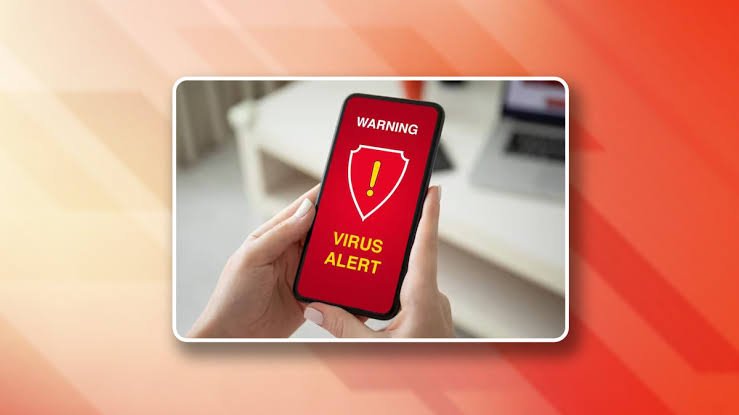
You should avoid rushing to install random apps or deleting important files when trying to remove viruses from your device.
If your Android phone has suddenly become slower, started displaying frequent pop-up ads, or is experiencing unusual battery drain and high data usage, it may be infected with malware. Instead of rushing to install random antivirus apps or deleting important files, security experts recommend identifying the source of the problem first and removing it using safe and effective methods.
According to a report by Lifewire, removing the malicious app responsible for the infection is often the quickest and most reliable solution.
How to Remove a Virus from Your Android Phone
If the infection is caused by a malicious application, the first step is to boot your device into Safe Mode. This mode starts Android with only essential system apps, preventing suspicious apps from running and making them easier to remove.
Step 1: Enter Safe Mode
The method varies depending on your Android device, but on many phones you can enter Safe Mode by pressing and holding the power button, then pressing and holding Power Off or Restart until the Safe Mode option appears. Confirm the prompt to restart your device in Safe Mode.
Step 2: Remove the Suspicious App
Once your phone is in Safe Mode:
- Open Settings.
- Go to Apps.
- Review the list of installed apps and look for any unfamiliar or suspicious application.
- Select the app and tap Uninstall.
- Restart your phone normally to exit Safe Mode.
In most cases, these steps are enough to completely remove the malicious software.
Factory Reset as a Last Resort
If the problem continues after uninstalling the suspicious app, performing a Factory Reset may be the final solution. This process restores your phone to its original factory settings.
Before proceeding, make sure to back up your photos, contacts, and other important files, as a factory reset will erase all data stored on the device.
How to Protect Your Android Phone from Viruses
Following a few simple security practices can significantly reduce the risk of malware infections:
- Keep Android updated with the latest security patches.
- Enable Google Play Protect to scan your device regularly.
- Install a trusted antivirus app from a reputable cybersecurity company if needed.
- Download apps only from the Google Play Store and avoid installing APK files from unknown sources.
- Verify the developer’s name before installing any application to avoid fake or cloned apps.
- Ignore pop-up ads or fake security alerts that claim your device is infected and ask you to install a repair app.
Signs Your Android Phone May Be Infected
Several warning signs may indicate that your phone has been compromised:
- Slower than normal performance.
- Rapid battery drain.
- Unusually high mobile data usage.
- Frequent pop-up advertisements.
- Unknown apps appearing on your device.
- Excessive overheating during normal use.
Vexiora Analysis
Although many users believe Android devices are highly vulnerable to viruses, most security threats are actually caused by installing apps from untrusted sources or granting unnecessary permissions to unknown applications.
With security features like Google Play Protect and regular Android security updates, malware infections have become far less common for users who follow basic cybersecurity practices. Downloading apps only from trusted sources, keeping your device updated, and reviewing app permissions regularly remain the most effective ways to protect your Android phone and personal data.